.

How to Increase Your Laptop Speed? Simple Tips

Are You Struggling with your laptop bad performance? If your laptop running slow and you want to make your laptop run like a new laptop without spending money and time....

Virus protection is not enough to keep your System Safe

No matter how many times an anti-virus cleans an exploit,there's a good chance it will re-occur because the operating system itself has security holes, which the anti-virus cannot protect.

How to stop a fake antivirus Pop-Up

These pop-ups cycle is endless and interrupts the performance of your computer which is very frustrating. Fortunately, there is a process for getting rid of these fake anti-virus pop-ups. If you have any issues....

How to fix windows 7 from restarting

However, many users complain that Windows 7 keeps restarting in their computer. This problem is not very difficult to fix. In this blog we have tried to explain how to fix...

How to make Windows 7 run faster

If you are trying really hard to make Windows 7 faster and usually you get frustrated working on your slow computer. So find here couple of tips which may help you to make Windows 7 faster..

free virus scan

How to Outlook

Showing posts with label feature in Windows 8. Show all posts

Apr 9, 2012

Windows 8 : The secret hidden features

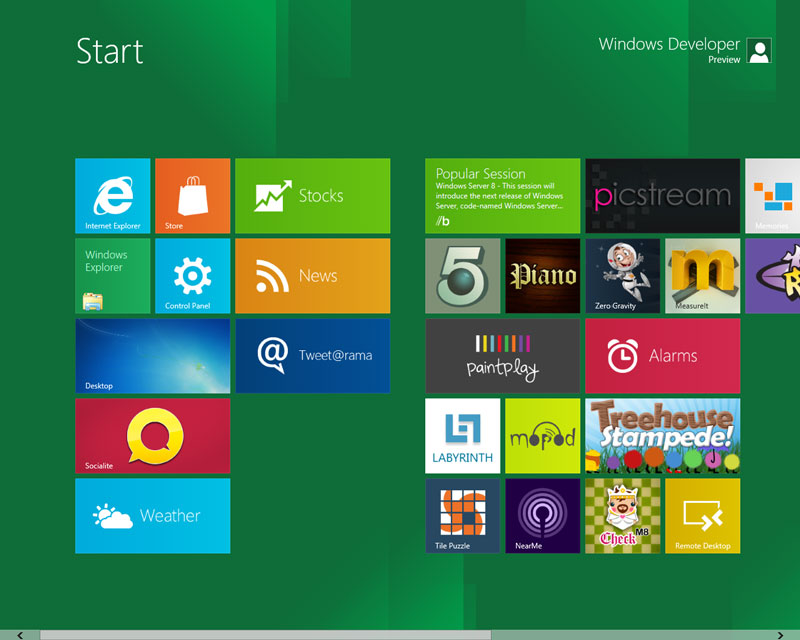
 Windows 8 has a completely reconfigured user interface from previous Windows operating systems like vista & windows 7, most significantly in its Metro-style user interface. User will have to access a complete touch-based operating system & complete with tiles. Microsoft binds Windows 8 with new features and also hide some mind blowing features before launch.But we are exploring here some of secret hidden features of windows 8.

Windows 8 : The secret hidden features
Boot in less than 20 seconds: Windows 8 has a new hybrid boot mode which drastically reduces (cold) boot time and will most likely be the default boot option going forward. In essence, it's a combination of "Log Off" and "Hibernate", users click on the shutdown button, Windows closes all running applications, logs off and then goes into hibernation mode.

Automatic Maintenance: Windows 8 has a new automatic maintenance feature. Microsoft puts a heavy emphasis on optimizing and increasing overall stability of Windows 8 that regularly checks for solutions to problems.

New Disk Defragmenter: The new Disk Defragmenter is finally capable of handling SSD drives and allows users to perform the TRIM command much easier than in Windows 7. It checks for bad sectors in real-time and marks them as "bad" in order to avoid data loss or damage.

Windows Explorer: Windows Explorer is the next tool that received a UI overhaul and a perfect example of where Microsoft reduces the steps necessary to perform tasks: Like it or not, Windows 8 is likely to come with a ribbonized version of Windows Explorer.

Windows Time Machine: Last but not least because it is still in beta version so more to come. Microsoft finally managed to give its "Restore Previous Versions" feature a usable and intuitive interface. There is a history vault lets you go back in time and restore earlier versions of a folder, just in case you accidentally made some unwanted changes or deleted some of its contents which is pretty similar to Apples Time Machine in Mac OS X.

Find more: What to expect from Windows 8 operating system >>
                Top Applications for Windows 8>>  

Oct 3, 2011

Steps to Enable Snap Feature Of Windows 8

You should not confuse the new snap feature of Windows 8 with the Aero Snapfeature that Microsoft introduced under Windows 7. Aero Snap back then allowed users to snap windows to the left or right side of the monitor where they’d resize to take up exactly half of the available screen estate. It was furthermore possible to move a window to the top to maximize it.

Snap in Windows 8 on the other hand refers to a feature in Windows 8′s new Metro user interface. When enabled it allows users to run and display more than one program in the Metro interface. To be precise, it can be used to display two program windows in the interface instead of just one.

Snap is however only enabled if the computer monitor resolution is 1366×768 or higher. Users who run a lower resolution won’t be able to make use of Snap on Windows 8.

It is however relatively easy to enable Snap on Windows 8 thanks to a Registry key that’s being used by Windows to determine whether the feature is enabled or disabled.

To enable Windows Snap do the following:
  • Open the Windows Registry editor. You can do that with the hotkey Windows-r, typingregedit in the run box and hitting enter afterwards. This may trigger an UAC prompt.
  • Navigate to the Registry key HKEY_Current_User\Software\Microsoft\Windows\CurrentVersion\ImmersiveShell\AppPositioner\
  • Right-click in the right pane and select New > Dword (32-bit) from the context menu.
  • Name the new key AlwaysEnableLSSnapping and enter 1 in the Value data field.
  • Click ok and restart the computer aftwards.
You should be able to display two program windows side by side in the Windows 8 user interface.
Users who do not want to edit the Registry manually can download a software like Windows 8 Snap Enabler which is a two button software that can enable or disable the snap feature of Windows 8. (via)

Comprehensive Support